 Meteopolis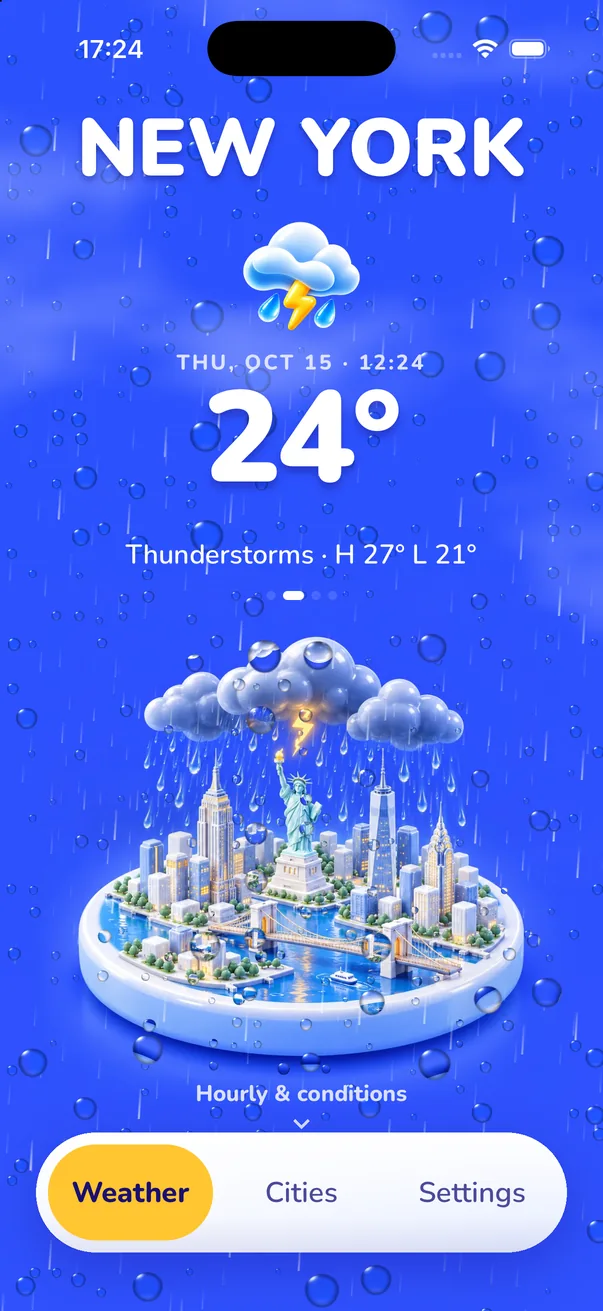
To add a weather widget to the iPhone Lock Screen: touch and hold the Lock Screen → Customize → Lock Screen, tap the widget area below the time, choose Meteopolis, tap the circular or rectangular widget, then tap Done. For the line above the clock, tap the date and choose the inline widget.
Add it in five taps
- Unlock with Face ID but stay on the Lock Screen, then touch and hold it until the wallpaper gallery appears.
- Tap Customize, then choose Lock Screen.
- Tap the widget area under the time (it shows "Add Widgets" if it's empty).
- Scroll to Meteopolis and tap the widget you want. The circular ones show a temperature gauge or the current condition; the rectangular one shows the city, temperature and today's high and low, and a rain chart when rain is on the way.
- Tap the ×, then Done.
For the inline widget (a single line next to the date above the clock), tap the date in step 3 instead and pick Meteopolis.
The Lock Screen widgets
| Widget | Shows |
|---|---|
| Circular: temperature | A gauge of the current temperature between today's low and high |
| Circular: condition | The current condition as a symbol |
| Rectangular | City, temperature, condition and today's high and low. When rain is coming, it switches to a rain chart for the next hours |
| Inline | One line beside the date, such as "10° · Cloudy · Moscow" |
Lock Screen widgets are drawn by iOS in a single tint that follows your clock color, so they always match your wallpaper. For the full-color city scene, use a Home Screen widget.
Lock Screen weather widget not working?
- "Location access needed": go to Settings → Privacy & Security → Location Services → Meteopolis and choose While Using the App, then open the app once.
- Stuck on an old temperature: open Meteopolis. The app refreshes the widget's timeline every time it runs, and iOS limits how often widgets can refresh on their own.
- Widget missing from the list: open Meteopolis once after installing it; iOS only lists widgets of apps that have been launched.
- Low Power Mode slows widget refreshes. That's normal.
Want warnings on the Lock Screen too? Turn on Weather alerts in Meteopolis Settings. Severe alerts appear as a Live Activity on the Lock Screen and in the Dynamic Island. Here's how that works.
Quick answers
How do I get the weather on my iPhone Lock Screen?
Touch and hold the Lock Screen, tap Customize, Lock Screen, tap the widget area and add a Meteopolis weather widget.
Why is my Lock Screen weather widget not updating?
Open the app once so it can refresh the widget, check that location access is set to While Using the App, and note that Low Power Mode slows refreshes.
Try Meteopolis free
Your city as a living miniature, in 45 styles. Free to download for iPhone and iPad.