 Meteopolis
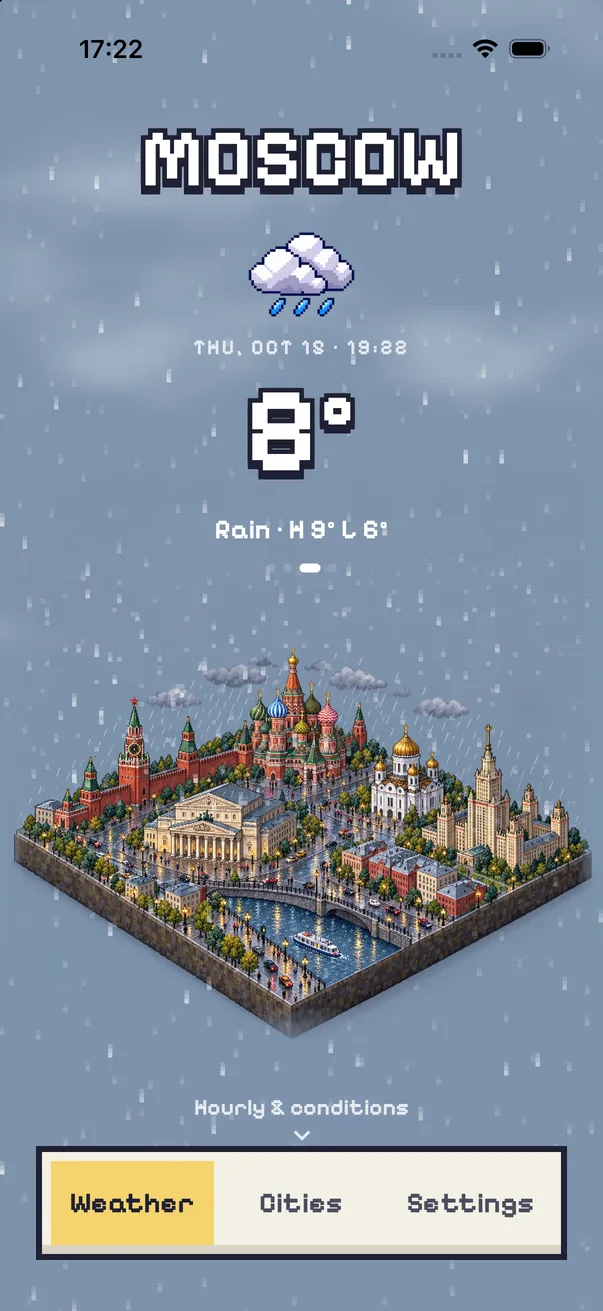
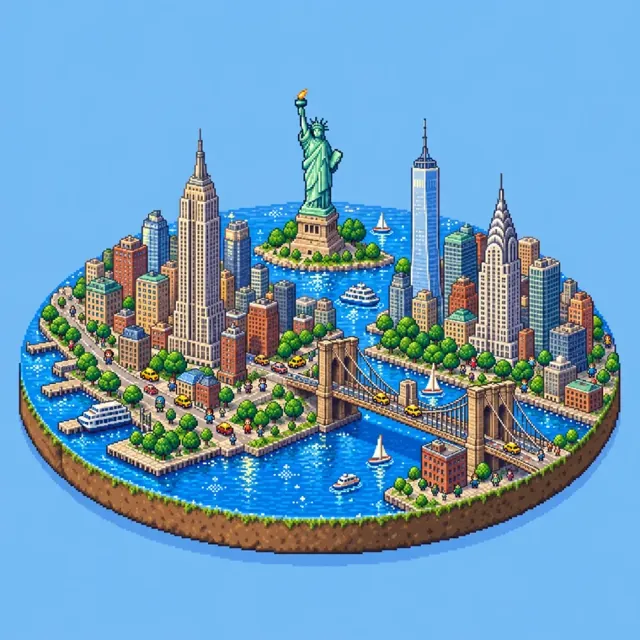
Meteopolis has two pixel-art weather styles. Pixel (free) draws your city as an isometric pixel-art scene with an outlined pixel font and pixel weather icons, and 16-Bit (paid) goes for the console-era look. Both update with the real weather, including animated pixel rain and snow.
Pixel and 16-Bit
Choosing a pixel style restyles more than the picture. The city name, the temperature and the forecast cards switch to a pixel font, the weather icons become pixel sprites, and even the tab bar gets chunky pixel borders.
| Pixel | 16-Bit | |
|---|---|---|
| Price | Free | Paid (Meteopolis+ or one-time) |
| Look | Isometric pixel diorama | Console-era side-on sprites |
| Font and icons | Pixel font and pixel icons | Pixel font and pixel icons |
Set up the pixel art weather app
- Download Meteopolis and add your city.
- Open Settings → Scene style and choose Pixel (free) or 16-Bit.
- Add the widget; it switches to pixel icons too.
- Turn on Weather sound for rain and wind loops while you look at it.
Searching "pixel weather"? That often brings up the Google Pixel phone's weather app. Meteopolis is for iPhone and iPad, and it's about pixel art.
Quick answers
Is there a pixel art weather app for iPhone?
Yes. Meteopolis has a free Pixel style and a paid 16-Bit style, with pixel fonts and pixel weather icons.
Is the pixel weather style free?
Pixel is one of Meteopolis's four free styles.
Try Meteopolis free
Your city as a living miniature, in 45 styles. Free to download for iPhone and iPad.